Devices and sign-in
Sign in on each device you want to connect. Every device gets its own credential and X25519 identity, plus a copy of the account encryption key. You can revoke one device while keeping the others connected.
The enrollment model
- A hosted daemon can start with WorkOS Device Authorization. WorkOS returns a public user code and verification URI; the daemon keeps the private device code for polling and never prints it. There is no loopback redirect in this flow.
- An enrollment code is a bootstrap path offered by some compatible or self-hosted backends. Codes are single-use and stored hashed at rest. The server never keeps the code itself. The Mezair-hosted website does not mint enrollment codes; hosted users sign in with WorkOS on each device.
- Redeeming a code produces a device-scoped credential: an access token plus a refresh token bound to that enrollment. The refresh token rotates on use; revocation severs the session immediately.
- Each enrollment mints a fresh X25519 device identity and publishes the public half as a device-identity entity, the crypto boundary other devices wrap keys to. See Encryption and keys.
First device: sign in and connect
Onboarding offers Sync after you set up your agent. Choose Use on this device to continue locally, or Sign in to Mezair to connect your account. You can also start from Settings → Sync & Mesh. Mezair checks the hosted service and opens browser sign-in in one action; custom services and compatible-backend enrollment options are under Advanced connection settings.
After signing in, choose how new devices connect:
- Automatic connection (default for new hosted accounts): your signed-in devices receive encrypted access from a connected trusted device.
- Verify each device with a code: an optional manual check; compare and approve the matching device-verification code on both devices.
Save the recovery code shown during setup. It is shown once and lets you reconnect when your trusted devices are unavailable. Then choose Connect this device after reviewing what Sync will upload. New workspaces remain Local unless you choose Sync; repository contents and local checkouts are not copied. Running Mesh jobs on this device needs its separate opt-in.
For a hosted headless machine, run this on the host and complete WorkOS device authorization in a browser on another device:
mezair-daemon sign-in --api-url https://<backend>
mezair-daemon security status
The browser address and code printed by sign-in are for WorkOS account
sign-in. They are not a device-verification code. The command reports whether
the new device is ready or what to do next. Run the daemon to keep it connected
while it waits for a trusted device to deliver the account key; one-shot
sign-in exits after authentication. Add --worker only when you want that
machine to execute Mesh jobs.
See the hosted setup guide.
Add another device
For a new hosted account, automatic connection is selected by default. Sign in to the same account on the new device and keep Mezair running on a connected trusted device. Access is shared automatically after the enrollment's public key and account proof are checked. If every trusted device is offline, the new device shows that it is waiting. Bring one online or use your saved recovery code.
Automatic connection deliberately relies on your account authentication and the pinned service's membership attestation. Someone who can sign in to your account could connect a device while a trusted device is online; a compromised service could also fabricate that attestation. Choose code verification if you want an independent comparison before each new device receives encrypted access. The service does not receive the account key or recovery code in either flow.
Code verification
On each device, open Settings → Sync & Mesh → Devices and select the other device's Compare & verify action. Both must display the same device code. Confirm the match on both ends: the connected device approves and sends the account-key bundle, while the new device approves the issuer to accept it. The website roster can show and revoke devices, but cannot perform this key-delivery approval by itself.
On the daemon, use mezair-daemon security devices to find the other device,
then mezair-daemon security verify <device> to display its verification
code. The readable output gives the matching approval command. The browser
sign-in code and the device-verification code are different codes.
Recovery when devices are unavailable
Sign in, then enter your separately saved recovery code in Device access. The device decrypts the opaque recovery envelope locally and installs the account-key version bundle. No existing device needs to be online. The headless daemon accepts recovery only through stdin or a protected file; avoid putting it in command arguments or shell history.
Recovery replacement issues a new code and replaces the current envelope. Save the new code before discarding the old one. A retained old bundle can open only the historical key versions it contains. Encryption passkeys are not implemented.
Code-based enrollment on compatible backends
Some compatible and self-hosted backends offer a one-use enrollment code in Advanced connection settings. An in-app pairing payload can also include a client-held secret used to open the recipient's encrypted account-key bundle. These are protocol options for deployments that support them; Mezair-hosted users connect devices by signing in with WorkOS. See Self-deploy the backend for the self-hosted no-identity-provider path.
Changing the account policy applies to future enrollments. It does not promote existing pending devices or remove access from devices already connected. Revoked enrollments cannot become trusted again.
Manage the roster
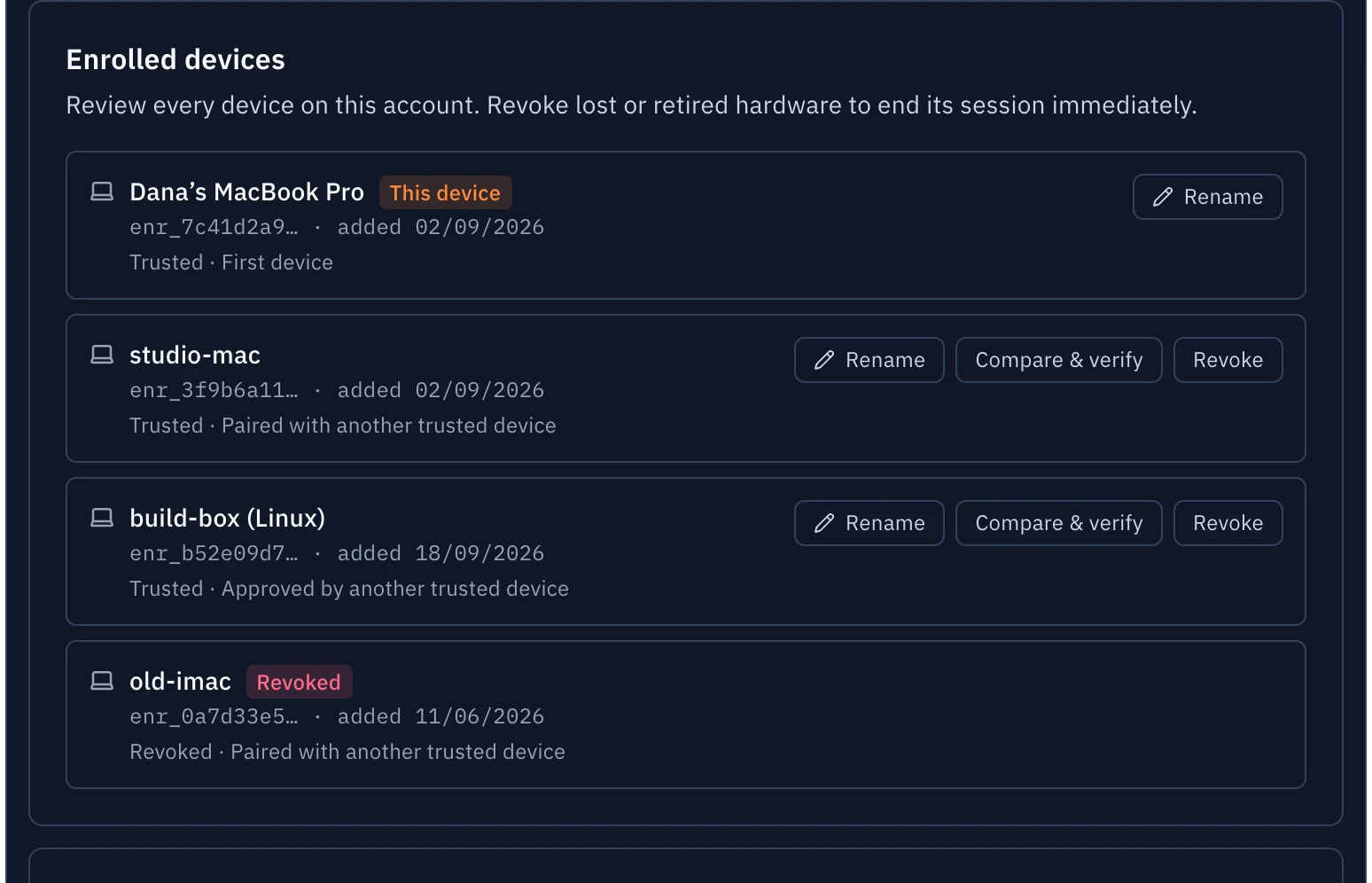
The Devices section (Settings → Sync & Mesh, and mirrored on /account)
lists every enrollment: name, enrollment id, age, status.
- Rename sets the display name. Submitting an empty name clears it back to the default.
- Revoke ends the enrollment. See below: where you revoke from changes what happens.
- The current device cannot be revoked from its own UI, because that would strand the session mid-operation. Revoke it from another enrolled device or from the website.
- Revocation is idempotent: revoking an already-revoked device is a no-op.
What revocation does and does not do
Both paths sever the device's session immediately and account-wide. They differ on keys:
| Session severed | ADK rotated | |
|---|---|---|
| Revoke from the app | Yes | Yes, ADK v(N+1) wraps to all surviving devices |
| Revoke from the website | Yes | Reconciled by a surviving trusted device before its next new write |
After an app-initiated revoke, anything sealed under the new key version is unreadable to the revoked device even if it still holds the ciphertext. After a web-initiated revoke, a surviving trusted device learns the revocation during reconciliation and rotates before accepting new writes. If all surviving devices are offline, that rotation waits until one reconnects; the revoked device keeps any key material and plaintext it already received.
Neither path erases what the device already decrypted. Rotation limits future access; it is not a remote wipe. Revoke from an enrolled device in the app when you need the rotation to happen immediately; website revocation rotates when a surviving trusted device next reconciles, as described in Status and limits.
Current limits
- Web revocation depends on a surviving trusted device reconnecting to perform the client-side rotation; app revocation from an online trusted device can rotate immediately.
- Recovery-code unlock needs the separately saved client secret; there is no server-side key escrow to fall back on, so the code must remain separately saved by the user.
- A device revocation invalidates the local recovery refresh root; replace recovery and save the newly issued code before refreshing that envelope.
- Pairing-payload redemption is covered by lifecycle tests; the full two-device acceptance run on hardware is still pending.