Chat, surfaces and agent runs
Chat is where most work happens in Mezair Desktop. A thread belongs to a workspace and can carry repository context, a work item, a persona, a provider and model, a plan, a goal, attachments, the documents an agent produced, and the full history of every turn.
Threads and context
Start a general thread, or attach one to a work item. Work-item threads are grouped under their ticket, so planning and building don't end up in unrelated conversations. A thread can reference several repositories and has one active repository for actions that need a single target.
You can rename, archive, reopen or delete a thread. Branching copies the conversation up to a chosen point, and asks the provider to branch its own copy too when it supports that.
Type @ to mention files from your repositories. Attached files and images go through the main process before the agent sees them. Before sending anything that could change files, check the repository chips and attachments above the composer.
Providers, models and reasoning
New chats use your primary provider. Mezair can drive:
- Codex, OpenAI and Azure AI Foundry, through Codex's app server
- LLMGateway, through Codex with LLMGateway's models
- Cursor and Devin, through their own command-line agents
The model list follows the provider you pick. Reasoning effort is a setting on the run, not something hidden in the prompt. Whether a provider works depends on it being installed and signed in on your machine, not only on your Mezair settings.
Optional local models only handle short helper prompts. Apple Foundation Models, Ollama and LM Studio don't replace the agent for repository tools, commands, approvals or long turns.
Permissions and live control
Each session starts with a permission mode:
| Mode | What the agent can do |
|---|---|
| Read only | Look and explain, without changing files. |
| On request | Ask before changing files or running commands that need approval. |
| Workspace auto | Work inside the selected workspace, within what the provider allows. |
| Full access | Use the widest local access the provider supports. Choose this carefully. |
While a turn runs, you can add context to steer it, interrupt the current step or stop the session. Approval and input requests stay visible in the thread and in the Inbox. Read the command, path, permission or data being asked for before you approve it.
Plans, questions and goals
Some agent output becomes proper Mezair interface instead of plain text:
- plans show their steps and update as work progresses
- questions show structured choices and record your answer
- goals show the current objective and how far along it is
Questions can offer suggested answers alongside a free-text reply, so clarifications stay attached to the work.
All of this is saved with the thread. You can dismiss and restore these without losing their history.
Inline surfaces and artifacts
Agents can publish documents, diagrams, data tables, reviews and quick visual sketches straight into the conversation. These render inline where they were produced. Each one can expand to fill the screen or open in its own window, and a minimise button folds it down to its title.
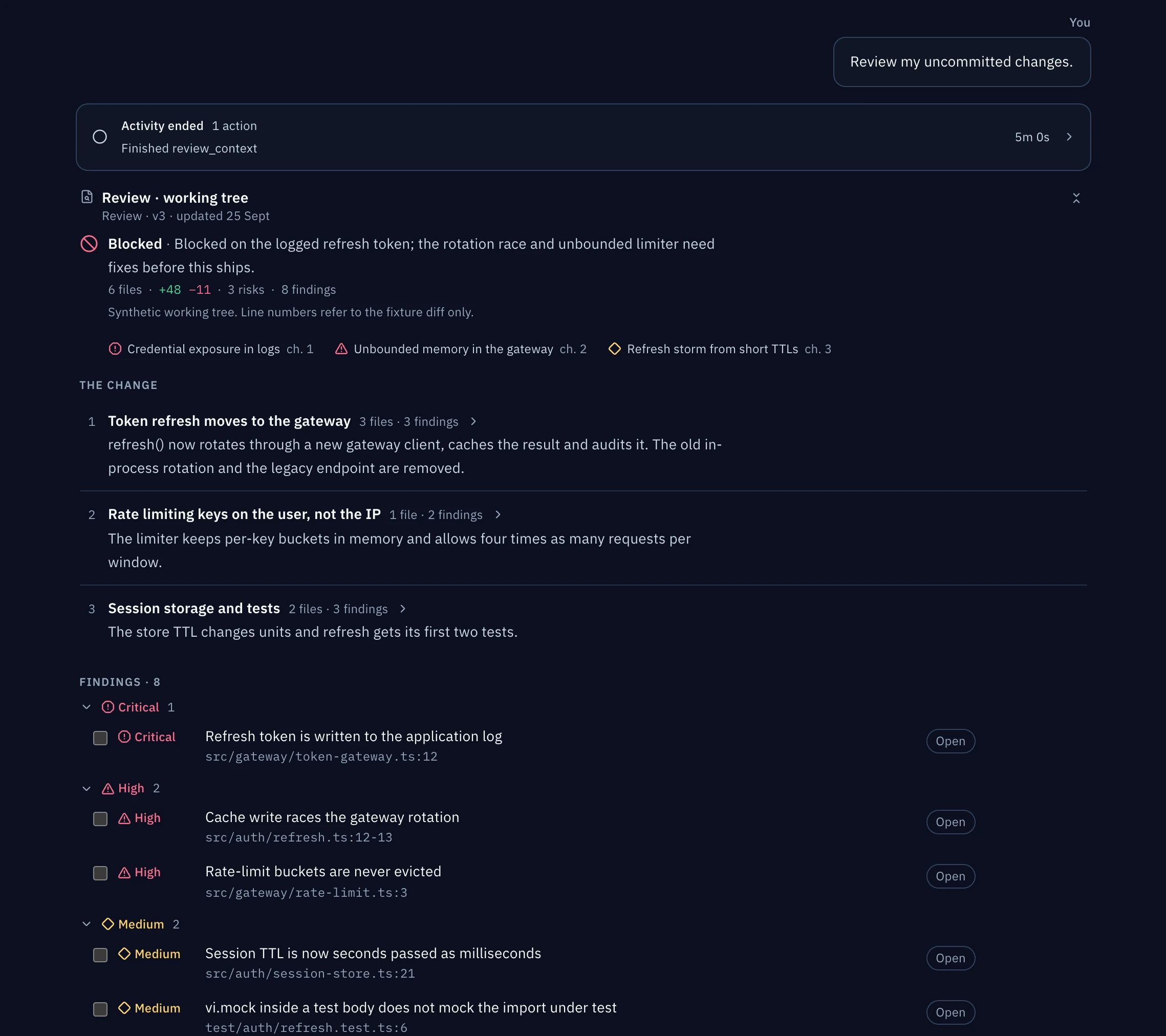
Artifacts are durable documents: Markdown, diagrams, HTML, Word documents, presentations, spreadsheets, code, data and text. An artifact can point at a file under .mezair/artifacts. You can read it, discard it and add comments to specific parts. Make comments about a concrete change rather than turning them into a second conversation.
Treat previews as something to review, not proof. A generated plan or report doesn't show that its commands were run, and a generated file still needs checking in the format it's in.
Agent activity and parallel work
Each turn has a working card that shows what the agent is doing: the commands it runs, files it edits and tools it uses. Expand it to see every step. Delegated work from helper agents shows its status and progress without flooding the main conversation, and folds back into the parent turn when it finishes.
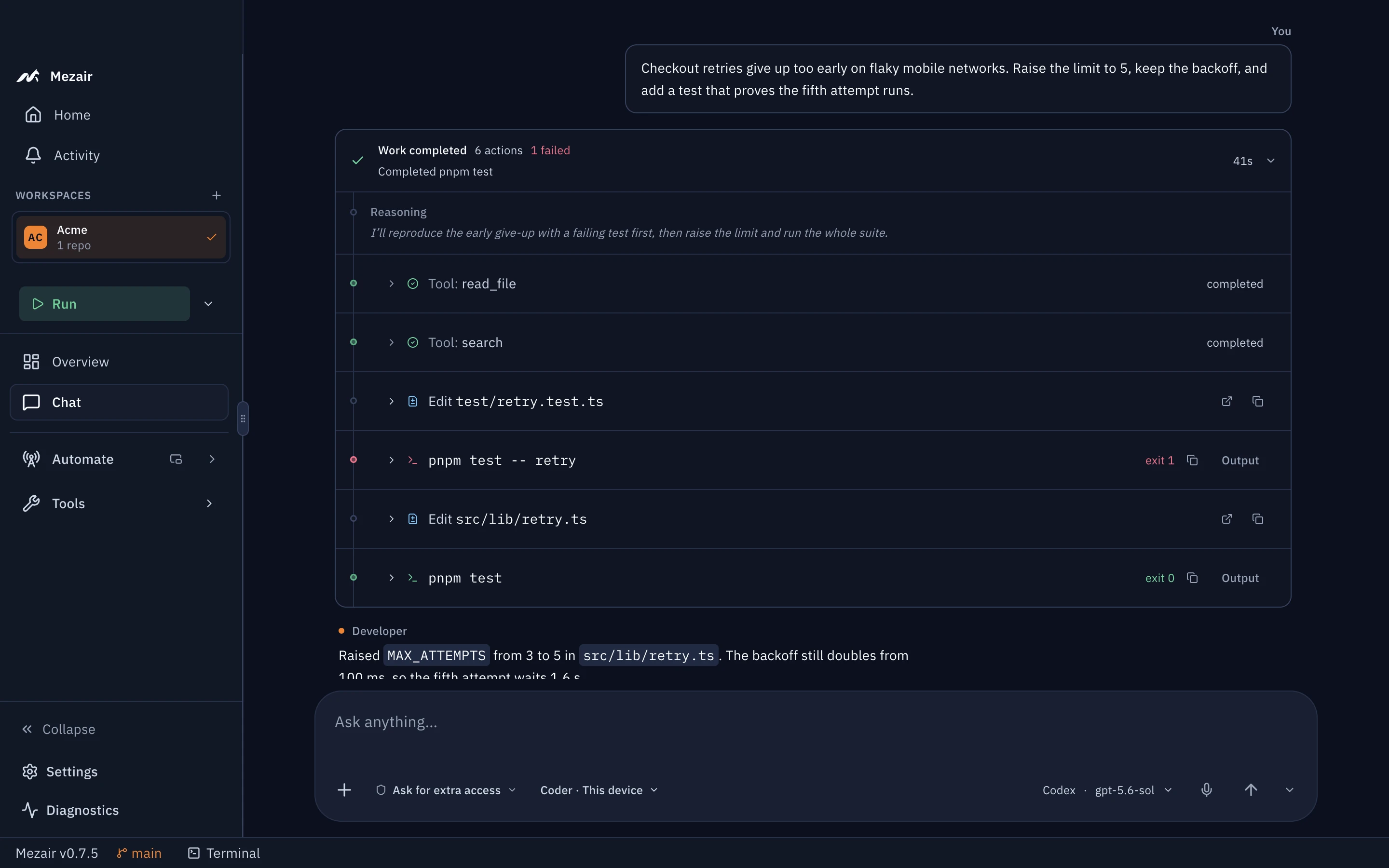
Mezair tracks active sessions and recent runs, so the Inbox, the repository twin, the sidebar and companion devices can show work that's carrying on outside the thread you're looking at.
For activity, failures, usage and coaching across a workspace, open Dojo.
Usage and finishing up
When the Codex CLI reports usage limits, Mezair shows the latest snapshot. It's for information only and depends on what your installed CLI returns.
A well-finished thread ends with a short result, the files that changed, the checks that ran, anything that failed or was skipped, and what risk remains. Archive the thread when the work is really done. See Agent workflows for planning, building, review and handover patterns.