Your first task in Mezair Desktop
This walkthrough takes you from a fresh install to a reviewed change on a repository you already know. It assumes you have installed the app and have Codex, Cursor, Devin, or an OpenAI, Azure AI Foundry or LLMGateway account you can connect. The screenshots use a fixture workspace called Acme with one repository, storefront.
1. Finish first launch
Pick the kind of work you do, connect your coding agent (or choose Set up later), and choose Continue without Sync. Nothing leaves your machine except what your agent provider needs for each turn. You can turn on Sync & Mesh later, per workspace.
2. Create a workspace
A workspace groups the repositories, threads, notes and automations for one piece of work. Press ⌘ ⌥ N (Ctrl+Alt+N on Windows and Linux), name it, and add a local checkout or clone one. Let indexing finish before your first task. The repository map helps the agent find the right files.
Choose a repository with a working test command. The quickest way to judge an agent is on code whose behaviour you can already predict.
3. Ask for something small and checkable
Open Chat, start a thread with ⌘ ⇧ N, and describe a change you could verify yourself in a few minutes. Good first tasks name the behaviour, the limit and the proof:
Checkout retries give up too early on flaky mobile networks. Raise the limit
to 5, keep the backoff, and add a test that proves the fifth attempt runs.
Before you send, check the controls under the composer:
- Access. Start with Ask for extra access, so file writes and commands that need approval wait for you.
- Run on. This device runs the agent locally. Other targets appear once you connect machines with Mesh.
- Model. The list depends on the provider you chose. You set reasoning effort here, not in the prompt.
4. Watch it work
The turn card shows each step while it happens: files read, searches, edits and commands, with their exit codes. Expand it at any point.
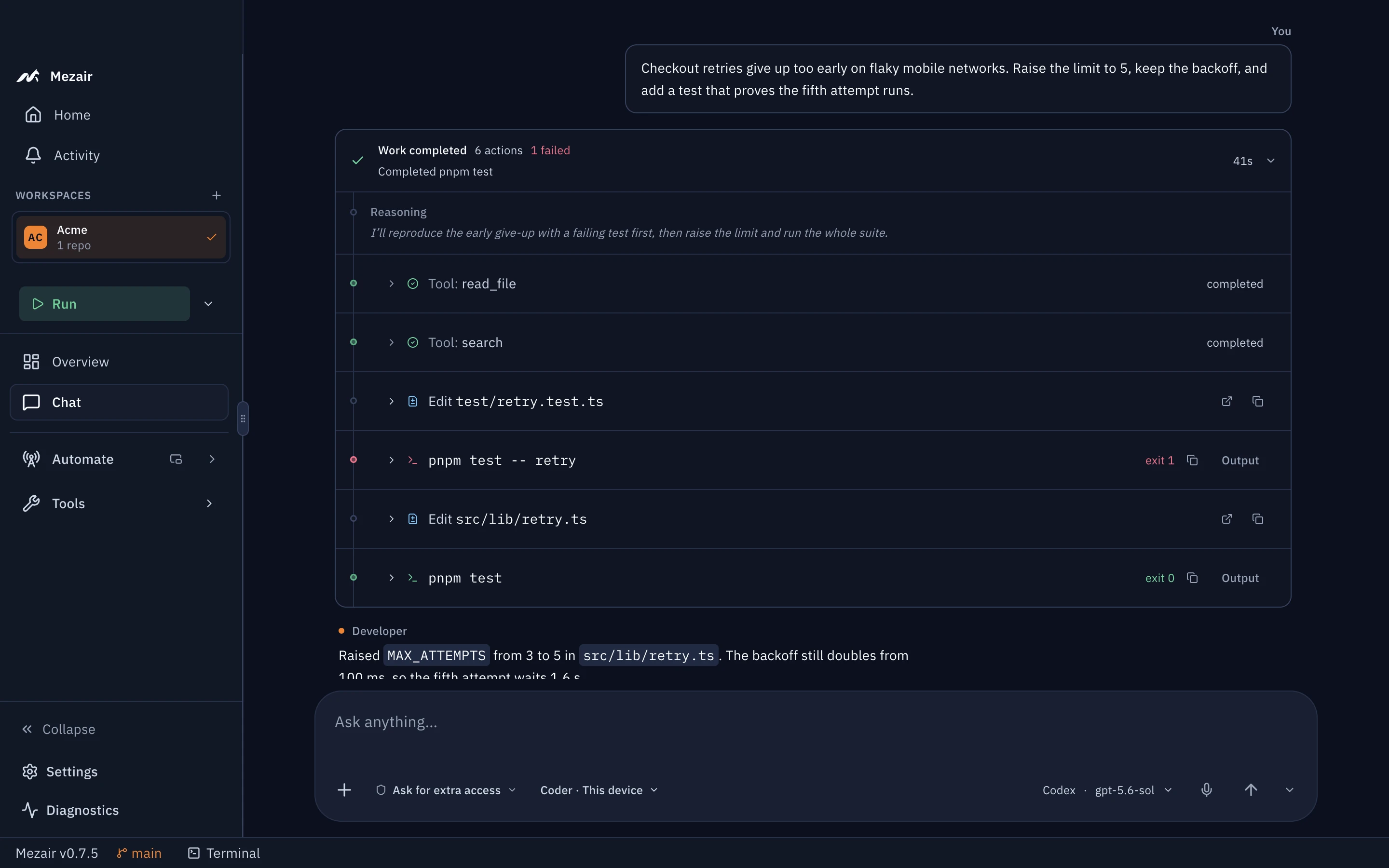
While the agent works you can Guide the current run with ⌘ ↵, queue a follow-up, or stop it. Approval requests stay visible in the thread and the Inbox until you answer them.
5. Read the result, then review the change
A good answer says what changed, what ran and what is left. Mezair shows the commands, their exit codes and the changed files next to it.
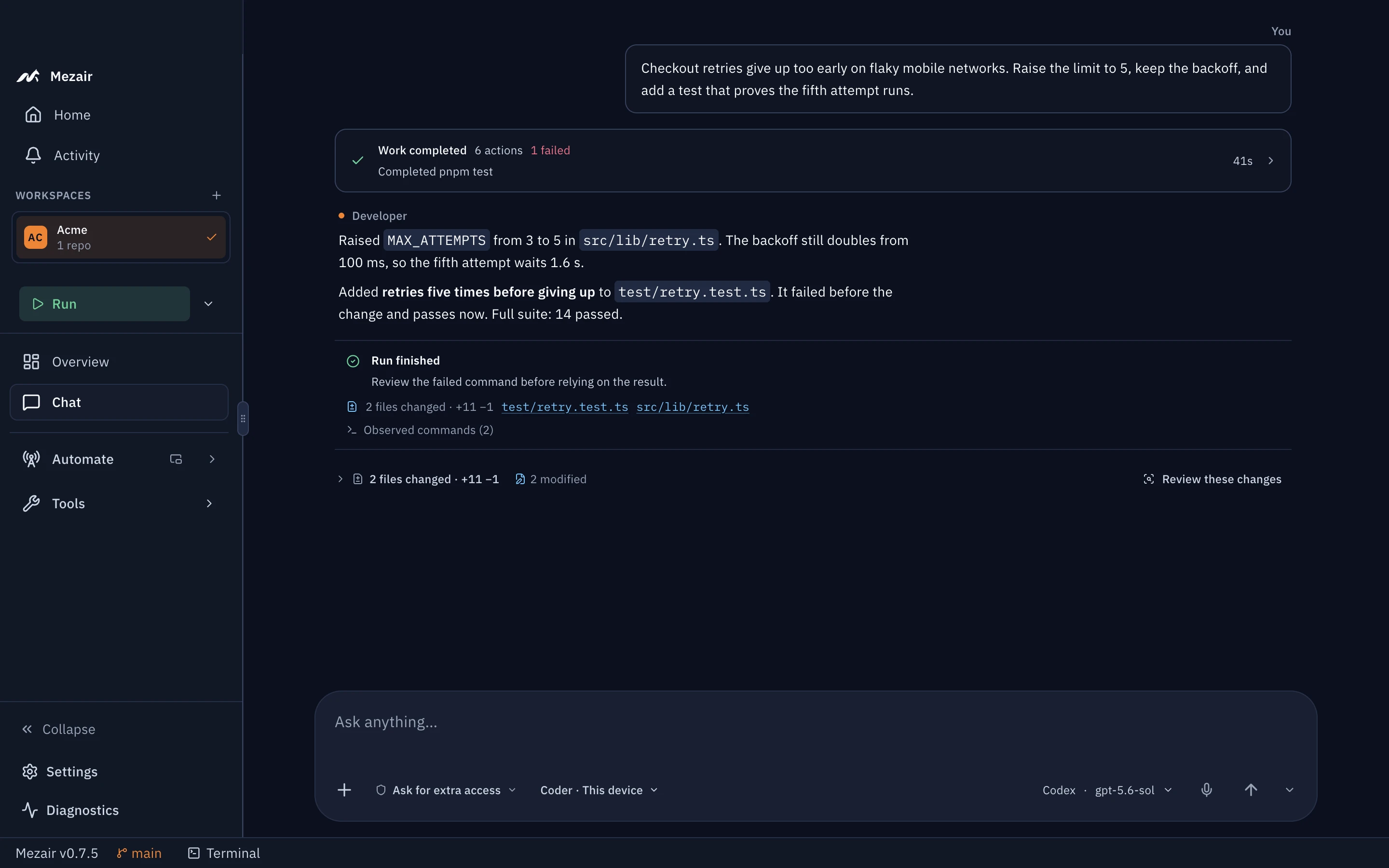
Choose Review these changes to read the diff file by file. For a deeper pass, ask for a review of the working tree; it comes back as an inline review with risks and findings you can send back to the agent. See Change review.
6. Commit or undo the change
From the changes footer you can commit, open a pull request, or undo the turn's edits. A chat thread works in the checkout you chose; automations, workflows, delegated helpers and Mesh jobs each get their own Git worktree instead. See Git workflows for branches and pull requests.
Where to go next
| I want to… | Read |
|---|---|
| Plan bigger work with acceptance criteria | Work items and planning |
| Run the same steps on a schedule | Automations |
| Chain agents into a reviewed workflow | Workflow graphs |
| Turn labelled issues into merged pull requests | Software factories |
| Run work on another machine, or move this session | Sync and Mesh |
| Learn the shortcuts | Keyboard shortcuts |