Sync and Mesh
Open Settings → Sync & Mesh to connect your machines, choose which workspace settings sync, run remote jobs and move sessions between devices. Synced content is encrypted before it leaves your device. Jobs run on your own machines, where provider credentials stay. For the technical details, see the Sync & Mesh docs.
Everything here is optional. New workspaces default to Local. Sync & Mesh, including LAN-first Mesh routing, is in beta through 30 November 2026. The lifecycle is implemented and tested and has been rehearsed against real Cloudflare deployments; a recorded physical multi-device demo is still pending.
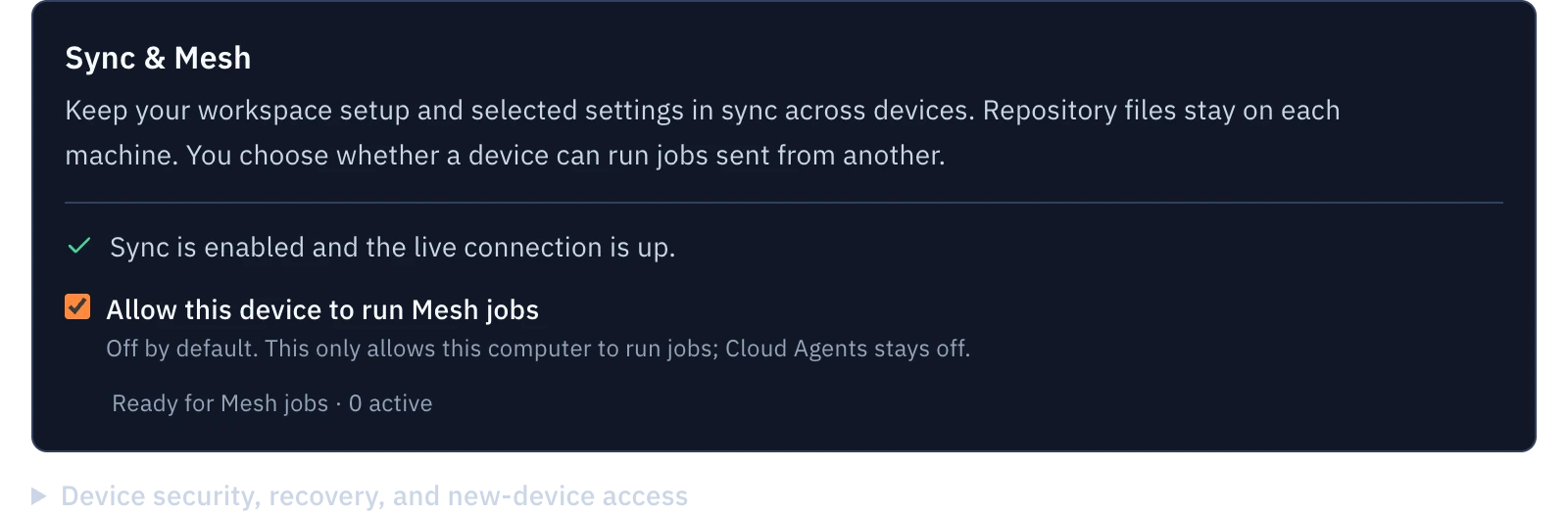
Account backend modes
The panel offers four account backend modes:
| Mode | Behavior |
|---|---|
| Local only | No account backend is connected. A remembered backend is paused, not forgotten. |
| Mezair-hosted | We run the backend for you. The invite-only test path requires paid or beta access. Checkout and production hosting are not available yet. |
| Your Cloudflare | A backend you deploy to your own Cloudflare account with mezair-cloud mesh. |
| Compatible backend | Any URL implementing the Sync v2 and Mesh v2 profiles. |
Pinning a backend stores the association only. No data uploads until you sign in and choose Sync for a workspace. See Self-deploy for the deploy path, Conformance for proving a third-party backend, and Hosted for the state of the operated service. Hosted writes require paid or beta access. Running your own backend carries no Mezair subscription charge. See pricing. Authentication, account security and deployment limits still apply.
Workspace scope
Choose Local or Sync for each workspace; Sync never turns on just because a backend is configured or a remote job is prepared. Sync carries workspace definitions, workflow templates, custom agents, and selected settings. Repository files, provider credentials, machine paths, and chat transcripts stay on their machines.
Live host routes
The app selects a route automatically. Supported upgraded clients send live commands and receive live output through an authenticated, encrypted session with the enrolled host when a route is enabled and reachable. If a host route is unavailable, the supported account path continues to coordinate durable job decisions; it does not make a sleeping host available.
Routing is LAN first. Desktop, the headless daemon and the native mobile app
try the host's LAN-address candidates first, then other private routes,
explicit HTTPS and managed ingress. A managed route needs a provisioned,
enabled endpoint and passes through the provider's proxy, so it is not
peer-to-peer; availability depends on the deployment. When a better route
appears, the live session switches only after the replacement has
authenticated and caught up. Requests already sent stay on their original
connection, and commands are never resent. Connection details label a
LAN-hinted route Direct: that is the host's address hint, not proof of a
physical LAN path. Your backend still admits and authorises every session, so
this is not offline operation. Details:
LAN-first Mesh routes.
Signing in and enrollment
Set MEZAIR_HOSTED_BACKEND_URL for the hosted tile, then sign in from the
panel and enroll this device. Hosted website sign-in uses a WorkOS session;
desktop sign-in uses the backend's advertised OIDC/PKCE flow with the public
desktop client id and callback http://127.0.0.1:<ephemeral-port>/callback.
These are separate credentials and channels. New hosted accounts use
automatic connection by default; choose code verification in Sync & Mesh
settings for a manual check. The result is a device-scoped credential, not
your account password, and you can revoke it per device. Enrollment mechanics:
Devices and sign-in.
Devices
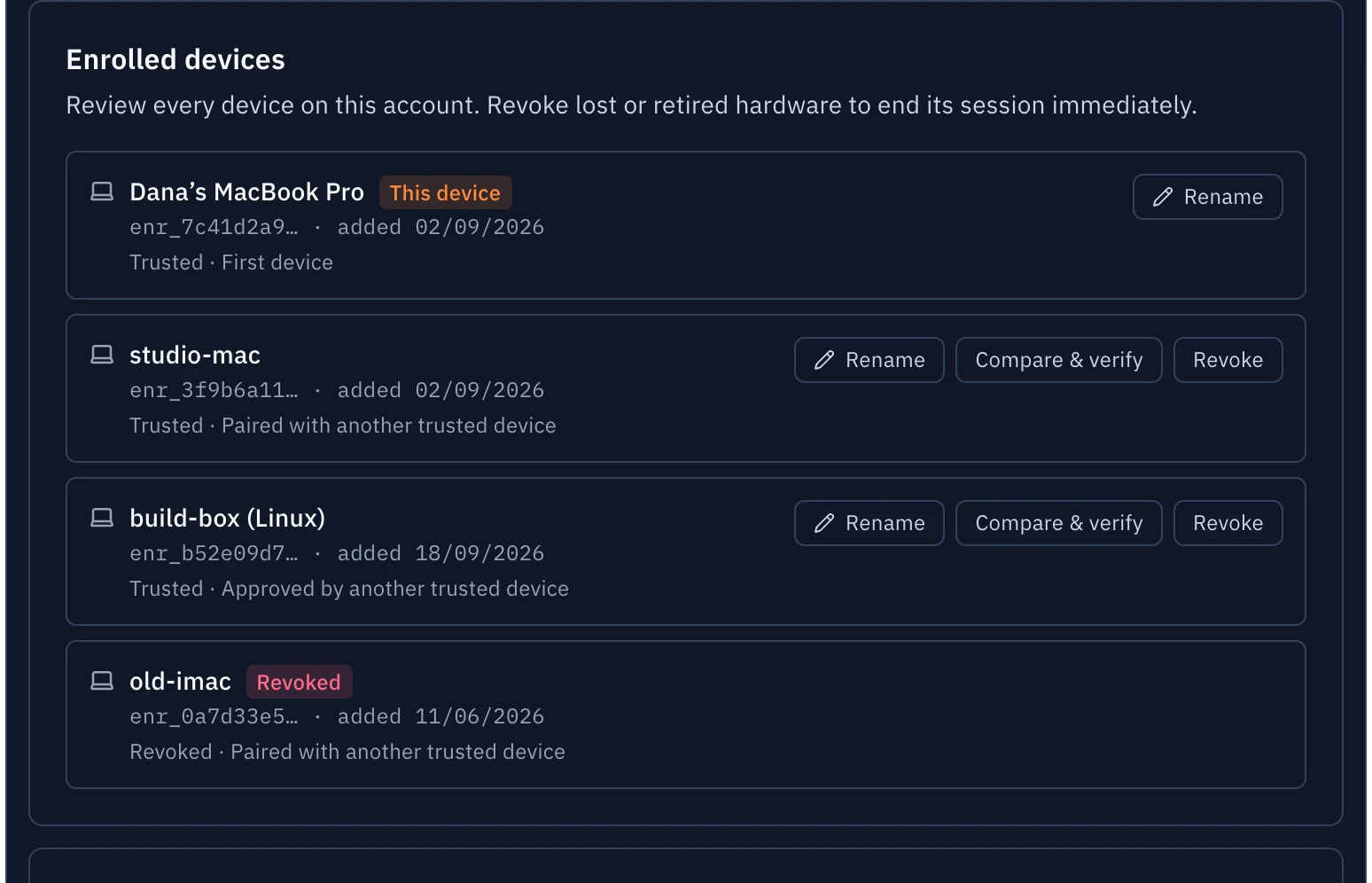
The Devices section lists every enrollment on the account: name, enrollment id, age, and status. Rename a device (submitting an empty name clears it) or revoke one. Revocation is account-scoped, ends that device's session immediately, and is idempotent. The current device cannot be revoked from its own UI. Revoke it from another enrolled device to avoid stranding the session.
Where you revoke matters. A revoke initiated in the app rotates the account data key, so the revoked device cannot read anything written after rotation. A revoke from the web account area severs the session only. Key rotation: Encryption; roster mechanics: Devices.
Remote executions
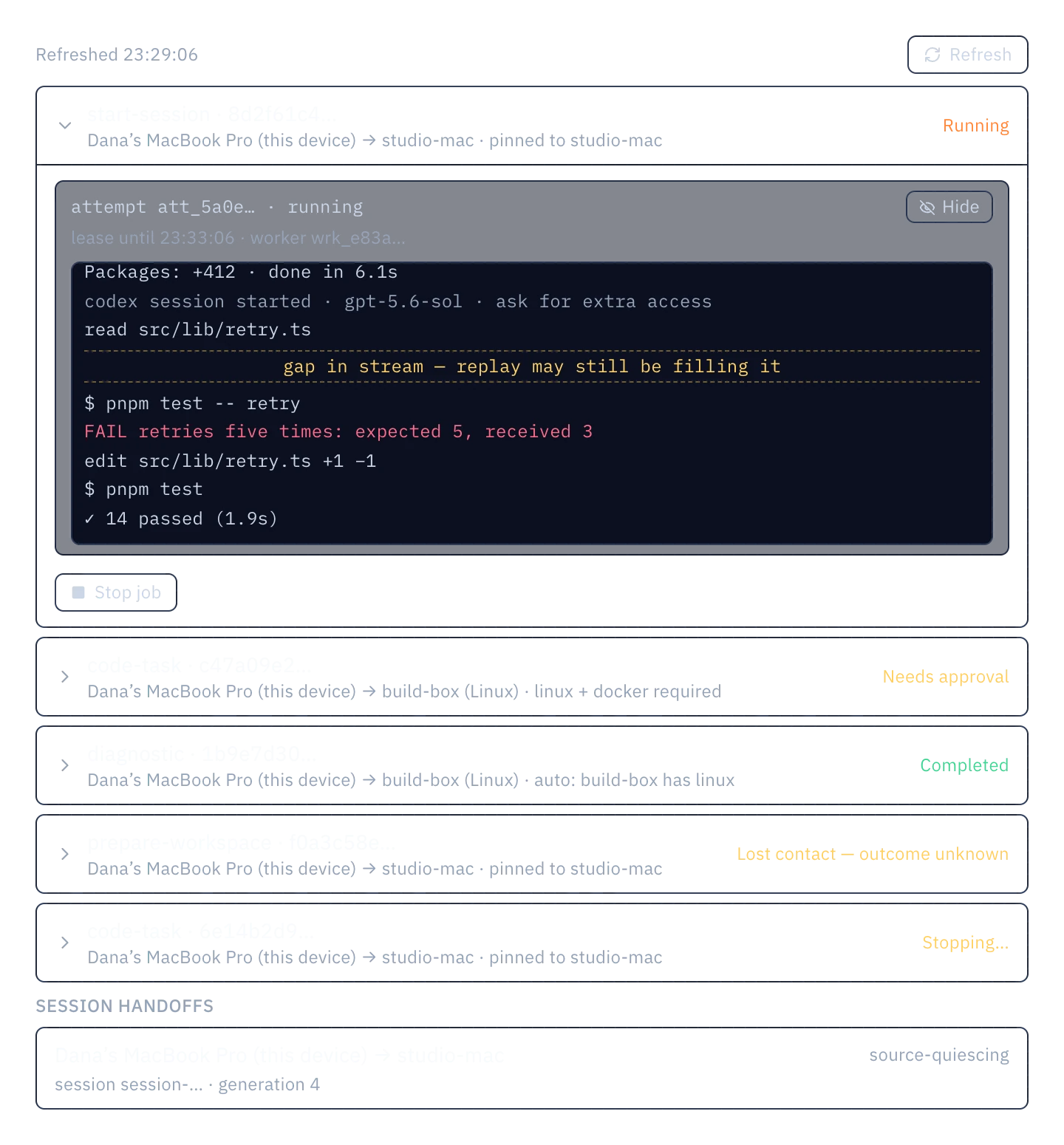
The Remote executions section lists jobs this account dispatched to enrolled
devices: source and target devices, placement explanation, and state. States
are labelled honestly: Stopping… while cancellation propagates, and
Lost contact when the outcome is genuinely unknown. Lost contact is never
presented as cancelled.
Expanding a job shows its attempts, each with a lease and worker incarnation. On a live attempt, Watch streams activity: durable replay fills history, live frames append, and gaps in the stream are marked rather than hidden. Pending approvals show the action digest and expiry, and Approve/Deny only appears where this device is actually permitted to decide. Job lifecycle and placement rules: Mesh jobs.
Running jobs on this device
The mesh worker is opt-in and device-local. The flag never syncs, so there is no account-level "run jobs everywhere" switch. Enabled, this machine claims account jobs it is capable of running; each attempt executes in an isolated per-attempt worktree at the pinned commit and returns results as artifacts. A headless daemon host mode exists for always-on mesh workers. Job execution and sealed artifact storage: Mesh jobs and Artifacts and shares.
Moving a session between devices
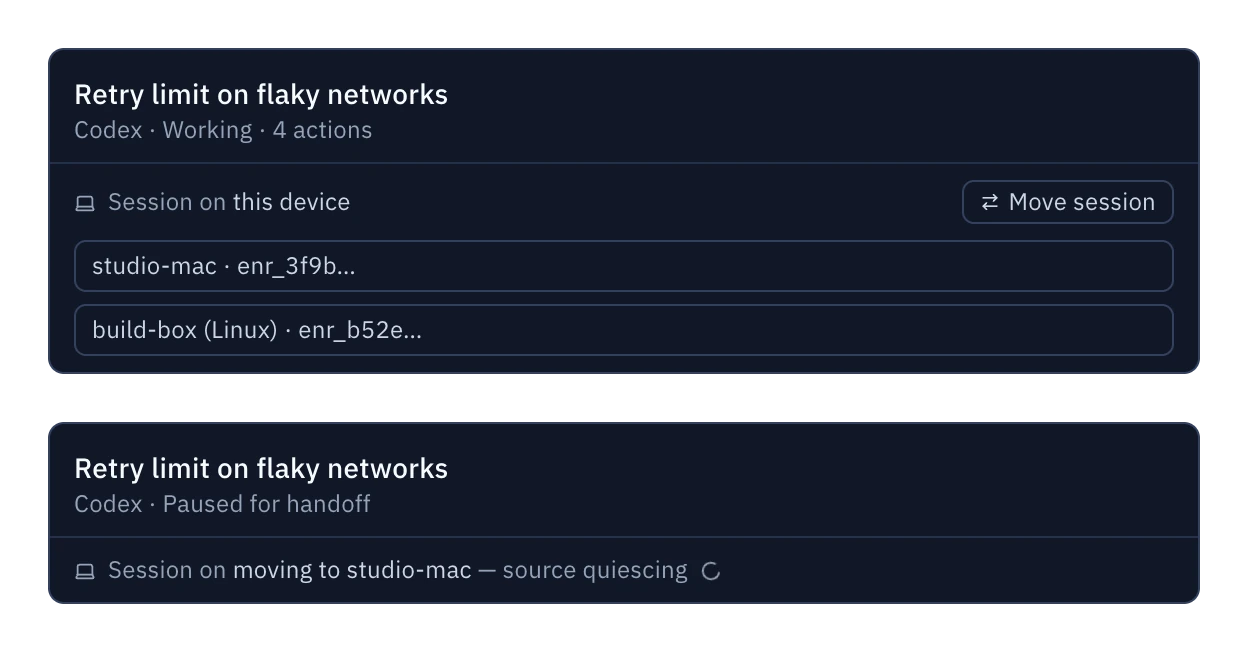
Session handoff starts in the run view, not in Settings. The ownership strip under the agent map shows which device owns the session; Move lists eligible devices and starts a handoff. Mezair checks readiness first. A dirty tree or unpushed commits block with concrete remediation rather than failing mid-transfer. Then the source quiesces, captures an exact-commit checkpoint, and ownership transfers at a fenced generation. No live process migrates; the target resumes from the checkpoint. The protocol: Session handoff.
Your data
The Your data section exports every synced entity to a portable JSON document and imports through a staged preview: creates, unchanged, conflicts, and invalid entities are counted and listed before anything applies. Account deletion is a durable operation with a visible status: it purges server-side state and signs every enrolled device out. Formats and lifecycle: Data portability.
What the backend can see
Synced payloads are sealed on your device before they leave; the backend stores and replicates ciphertext and sees only the metadata replication needs: entity ids and types, revisions, sizes, timestamps, session and job records, and the device roster. The full envelope, key-wrapping, and share-link story: Encryption.
For the architecture, contract, and threat model behind the panel, start with the Sync & Mesh overview. Current rollout state: Status and limits.